
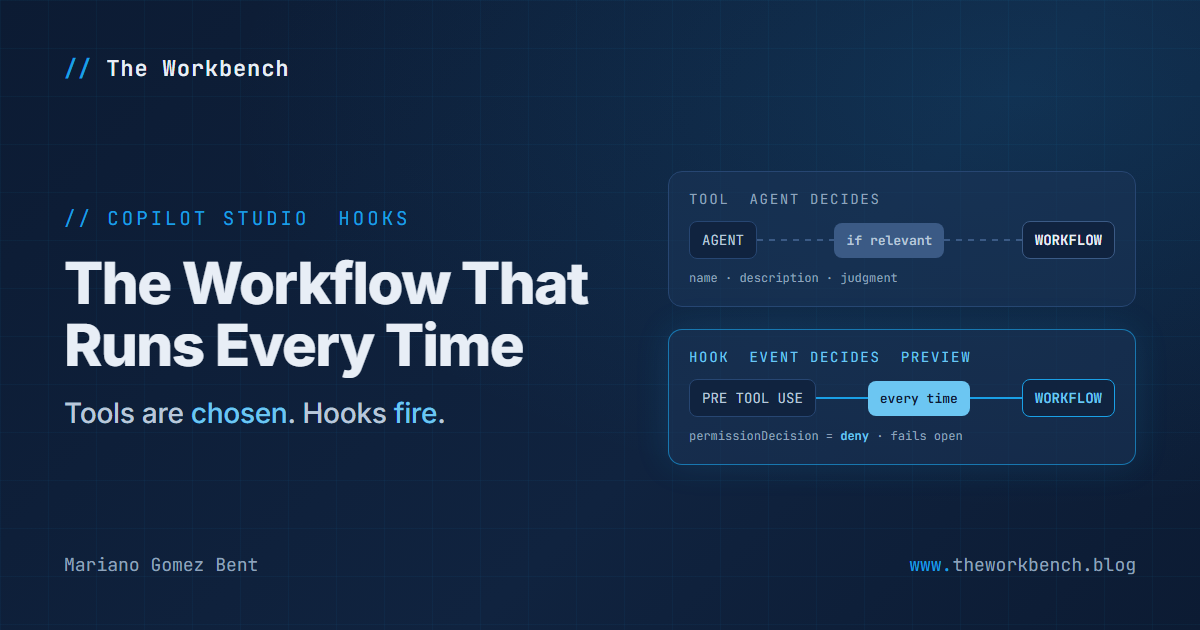
Copilot Studio agents built on the GitHub Copilot harness can now run one of your workflows before every tool call, and that workflow is allowed to say no. The feature is called hooks, it arrived in preview at the end of September, and it answers the question a governance reviewer eventually asks about any generative agent: "how do I make sure the agent always does X, instead of only when it decides X is relevant?"
Until now the honest answer was that you couldn't, not completely. You could write better instructions, you could give a tool a sharper description, and you could hope. Hooks replace the hope with a mechanism.
Background
The new article is Hooks (GitHub Copilot) (preview), last updated September 29, 2026, and it is a brand new page in the agents experience documentation rather than an edit to an existing one. Like everything in that section, it applies to agents powered by the GitHub Copilot harness, which I wrote about on September 21st in The Agent Your Flow Can't Call, and it consumes Copilot Credits under usage-based billing.
A hook has two parts: an event, which is a point in the agent's lifecycle, and an action, which today is always a workflow. When the event fires, Copilot Studio calls your workflow, passes it the details of what just happened, and reads the workflow's response back into the conversation. The page puts the difference from a tool in one line that is worth memorizing: a tool runs when the agent judges it relevant, a hook runs every time its event occurs.
There are six events:
- Start (pre-loop): a new conversation begins. Can return
additionalContext, background text for the whole session. - User prompt submitted: before each user message is processed. Can return a
modifiedPrompt. - Error: an error outside a tool call. Can return
retry,skiporabort, plus the message the user sees. - Pre tool use: before a tool call. Can deny it, rewrite its arguments, or add context.
- Post tool use: after a tool succeeds. Can replace the result the model sees.
- After tool failure: a tool returned an error. Can add guidance for the model.
Every event also sends three common inputs: event, timestamp, and a metadata object carrying the conversation ID, the user's channel ID, their Entra object ID and display name, the channel, and the agent's ID, name and schema name. The three tool events can be scoped to specific tools, or left empty to apply to all of them.
Why it matters
For makers. This is the first time a maker can attach a deterministic rule to a generative agent without restructuring it into topics. A Start hook that looks up the user's region and open cases gives the agent the same context on every conversation, no matter how the user opens. A Post tool use hook that writes an audit row runs on every call, so "did the agent actually log that?" stops being a question. And you build all of it in the workflow designer you already use for tools.
For professional developers. If you have worked with lifecycle hooks in coding agents, the shape will be familiar, and the details deserve a careful read. Two in particular. First, Pre tool use is the only event that can block anything; every other event can add context or change values, but it cannot stop the agent. Second, and more important, hooks fail open. The page is explicit that if the workflow fails, times out, or returns something the agent cannot read, the agent continues as though the hook returned nothing, and it advises against relying on a hook as your only safeguard for a business-critical rule. I think that is the right default for a conversational product, and it is also the sentence your security reviewer needs to see before anyone calls a hook a control. Pair it with whatever the connector or the downstream system enforces on its own.
Something else to keep in mind is that the inputs are untrusted. The prompt, tool result and error values can carry content the agent did not produce, and the docs say so on each of them. A Pre tool use workflow that pattern-matches the agent's arguments is evaluating text a user may have shaped on purpose.
The demo
Take an agent with one sensitive tool, say the Office 365 Outlook Send an email connector action, and attach two hooks. A Pre tool use hook scoped to that tool only denies the call when any recipient is outside your own domain, and tells the model why. A Post tool use hook scoped to all tools writes one audit row per successful call, using the metadata object to record who asked and which agent acted. Then try to talk the agent into emailing an external address.
The deny branch of the Pre tool use workflow ends in a Respond to the agent node that returns these values:
{
  "permissionDecision": "deny",
  "permissionDecisionReason": "External recipients are not allowed from this agent. Offer to draft the message so the user can send it from Outlook."
}
Every output on every event is optional, and leaving one empty means "carry on with the default", so the allow branch can simply return nothing at all. The reason text is not a log message: it goes back to the model, which uses it to decide what to tell the user, so write it as an instruction the agent can act on. That is the difference between a refusal that dead-ends the conversation and one that offers the user a way forward.
The audit workflow needs nothing back. Its interesting part is the mapping into the row it writes:
Audit row column   <-  hook input
-----------------      ----------------------------
Timestamp          <-  timestamp
Agent              <-  metadata.agentName
User (Entra ID)    <-  metadata.userAadObjectId
Channel            <-  metadata.channel
Conversation       <-  metadata.conversationId
Tool               <-  toolName
Arguments          <-  parameters
Use userAadObjectId rather than userId to identify the person: userId is the user's ID in the channel they are chatting on, such as Teams, while the object ID is their Entra identity. The docs also warn that every metadata field can be empty, and the user fields always are when nobody is signed in, so give the audit row a fallback value instead of letting the write fail. A failed audit hook does not stop the agent, which is exactly the situation you don't want to discover from a gap in the table.
Steps to recreate
The paths below come from the hooks article and from Add a workflow to your agent as a tool (GitHub Copilot) (preview). You will need an agent created in the new agents experience and powered by the GitHub Copilot harness.
1) Open your agent in Copilot Studio. On the Build tab, in the components panel, select Tools and add the Office 365 Outlook Send an email action, so the agent has a tool to guard.
2) On the top menu bar, select the three dots (...), and then select Hooks. Hooks live on the agent's command bar, not on the Build tab, which is the first thing you'll go looking for.
3) In the Hooks dialog, select Create. On the Add hook page, set Event type to Pre tool use, accept or change the suggested Name, and in Tools select only the email action.
4) Select New workflow. The designer opens with a starter workflow that already has a When an agent calls the flow node carrying the event's inputs and a Respond to the agent node carrying its outputs. Do not rename those fields: Copilot Studio uses the names to decide whether a workflow fits the event, and a renamed field drops the workflow from the list.
5) Add a condition between the two nodes that inspects parameters for the recipients, and set the two outputs shown above on the deny branch. The article does not document the internal shape of parameters for a given tool, so run the agent once against an internal address first and read the workflow's run to see exactly what arrives before you write the condition.
6) Select the Save icon, then Publish. A saved but unpublished workflow does not run. You return to Add hook with the new workflow selected; select Done.
7) Repeat steps 2 to 6 for a Post tool use hook with Tools left empty (all tools), whose workflow writes the audit row to a Dataverse table or a SharePoint list.
8) Select the Save icon on the agent's top menu bar. Selecting Done only adds the hook to the draft; it is not stored until the agent is saved, and it does not run for users until you publish the agent.
9) Test with three prompts (the exact wording and expected outcomes are in the repo's test plan): an email to a colleague (allowed, audited), an email to an external address (denied, with the agent offering an alternative), and an attempt to argue the agent out of the refusal. The third one is the real test of whether your reason text was written for the model.
Keep the workflows quick. The hooks article says a hook that times out is treated as though it returned nothing, but it doesn't give the timeout itself; the documented limit for a workflow used as an agent tool is 100 seconds, so design well under that. A hook that times out is a hook that silently didn't run.
Companion repo
Workflows themselves live in the environment, so agent-hooks-lab on GitHub is the specification and test harness around them. The README.md condenses the event reference into one table, the contracts folder holds the input and output field names for each of the six events as JSON (the single most useful thing to have open while building), the payloads folder has the deny response and the audit mapping from above, and tests/test-plan.md has the three prompts with their expected outcomes and what each kind of failure tells you.
What it does not have yet is an exported solution with the agent and both workflows. That goes in once it has been built and run in a real environment, not before.
Final Notes
What I find most encouraging about hooks is that they move a category of requirement out of the prompt and into something you can point at. "Always log", "never email outside the company", "always know the user's region before answering" were, until the end of September, instructions you asked a model to follow. Now they are workflows bound to events, visible in a list, editable, and testable.
Just don't let "runs every time" turn into "cannot be bypassed" in anybody's slide deck. A hook is a strong, consistent nudge on the agent's path, and it fails open by design. Treat it as the layer that makes the agent behave well, keep the hard controls where they have always been, and you'll get the best of both!
Until next post!
MG.-
Mariano Gomez Bent
Former Microsoft BizApps MVP

Comments